 . A new row will appear in the table.
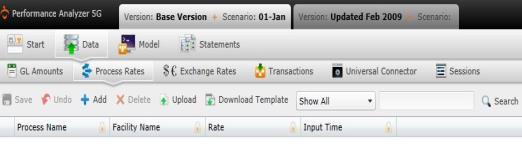
 The rate by which each facility is active within a process is added to your model using the Process Rates screen.
You can navigate to the Process Rates screen by selecting "Data" on the Main Menu, then "Process Rates."
To add a process rate manually:
. A new row will appear in the table. The Process Rates table contains the following columns:
To upload files:
 . A download pop-up screen will appear. Make your selections and select "OK."
 . The "Upload" panel will open.
 .
.What if the records fail to upload?See Edit Failed Records.
Select  at any time to delete any changes you have made. Select
  to delete an entire process.
Related Topics: